Add Hebrew in Settings, then switch with the globe icon. This guide covers iPhone and Android keyboard setup, predictive text, and everyday typing.
How do I type in Hebrew on an iPhone?
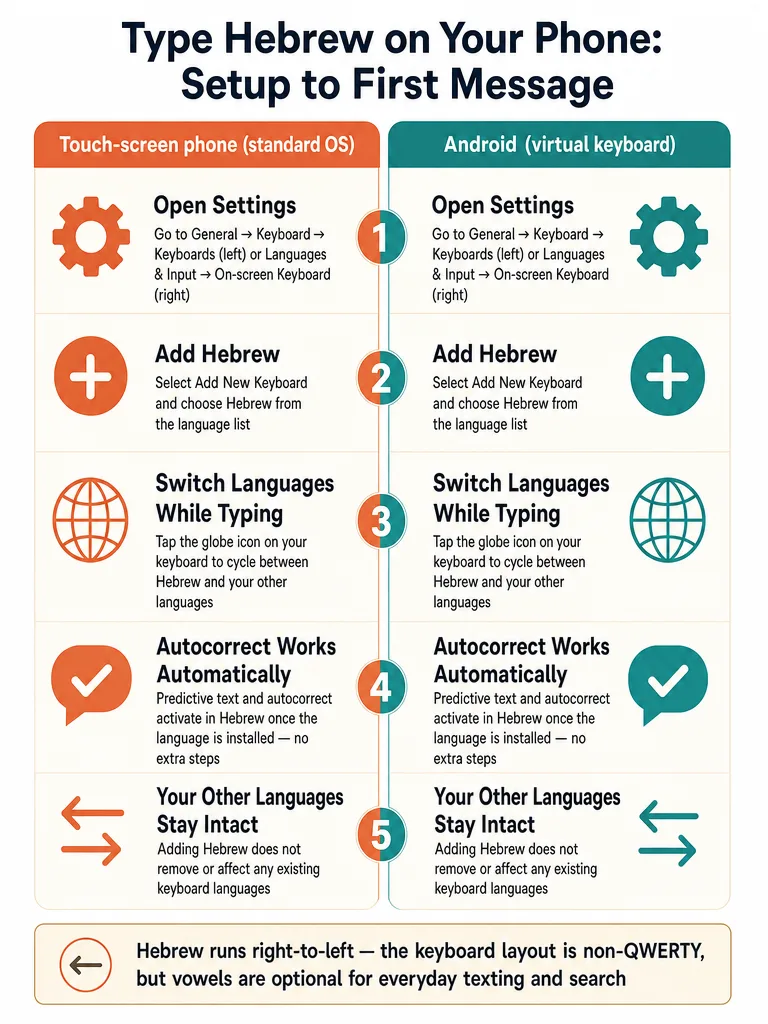
Typing in Hebrew on iPhone starts with adding the Hebrew keyboard in Settings, and it takes about a minute. Open Settings, tap General, then Keyboard, then Keyboards, tap Add New Keyboard, and choose Hebrew. Once it's added, the Hebrew keyboard appears anywhere you type: Messages, WhatsApp, Safari, notes.
Here's the full path in order:
Open Settings.
Tap General.
Tap Keyboard.
Tap Keyboards.
Tap Add New Keyboard.
Scroll to and select Hebrew.
That's the whole setup. TalkPal's phone-keyboard guide lays out this same path, Settings to General to Keyboard to Keyboards to Add New Keyboard, then selecting Hebrew. HebrewKeyboard.org describes a slightly older menu wording (Settings, Keyboard, International Keyboards, Add New Keyboard), so if your labels look different, you're still in the right place.
After Hebrew is installed, you don't type anything special to activate it. The letters are ready the moment you open a text field. The next thing most people want to know is how to jump between Hebrew and English without digging back into Settings.
How do I switch back and forth between English and Hebrew while typing on iPhone?
Switching between English and Hebrew on iPhone takes one tap. Look for the globe icon (or a smiley face icon on some layouts) in the bottom-left corner of your keyboard, next to the space bar. Each tap cycles to the next installed language, so if you have English and Hebrew, one tap flips you between them.
According to TalkPal's setup guide, you switch while typing by tapping the globe or smiley icon on the keyboard. HebrewKeyboard.org describes the same move: tap the globe to switch to Hebrew, tap it again to go back to English.
If you have three or more keyboards installed, tapping cycles through all of them in order. To jump straight to Hebrew without cycling, press and hold the globe icon: a menu pops up so you can pick the language directly. So one tap flips between English and Hebrew, and a long press on the globe takes you straight to the one you want.
Watch
Galaxy S23's: How to Add More Languages To Your Keyboard
From ITJungles on YouTube
Will installing a Hebrew keyboard affect my other languages?
Adding Hebrew doesn't touch your other keyboards. Your English keyboard, your emoji, and any other languages you already use stay exactly where they are. Hebrew simply joins the list, and you switch between them with the globe icon whenever you need to.
TalkPal's guide is direct on this point: adding a Hebrew keyboard doesn't affect other keyboard languages, and it lets you switch between languages as needed. Nothing gets removed, and nothing gets overwritten.
So there's no reason to hesitate before installing it. If you decide later you don't want Hebrew in the rotation, you can remove it from the same Keyboards menu without affecting anything else. Adding and removing keyboards is fully reversible.
Can I use predictive text and autocorrect in Hebrew once the keyboard is installed?
Yes. Modern phone keyboards handle Hebrew predictive text and autocorrect the same way they do for English, once the language is installed. As you type, the suggestion bar above the keys offers completions and corrections in Hebrew, which speeds things up while you're still learning the layout.
TalkPal notes that most modern keyboards, including the iOS keyboard and Gboard, offer predictive text and autocorrect in Hebrew after the language is added. That matters for beginners: even if you're not sure of a word's exact spelling, the suggestions help you land on it.
One caution: Hebrew autocorrect works from spelling, not meaning. It can fix a typo but it won't fix a sentence that's grammatically wrong for the gender you're addressing. For that, you need a translator that understands context, not just a keyboard that predicts the next letter.
Do I need a separate app, or is the built-in iPhone keyboard enough?
The built-in iPhone keyboard is enough to type Hebrew for texting, notes, and search. You don't need to buy or download anything to enter Hebrew letters. Separate tools become useful for a different job: reading, translating, or getting Hebrew that sounds natural rather than word-for-word.
Here's how the options split by purpose:
Tool
Best for
Setup needed
Built-in iPhone keyboard
Typing Hebrew in any app
Add it in Settings (free)
Virtual keyboard (HebrewKeyboard.org)
Typing on a computer with no Hebrew keys, then copy-paste
None, works in a browser
Downloadable keyboard app
Extra layouts, themes, stickers
Install and enable
Translator
Turning your English into natural Hebrew, or reading Hebrew back
Depends on the tool
HebrewPod101's guide offers online and app alternatives for people who'd rather not set up a device keyboard. HebrewKeyboard.org runs entirely in the browser: you click letters on screen and paste the result wherever you need it.
The keyboard gets Hebrew characters onto the screen. It won't tell you whether your phrasing sounds like a local or like a textbook. That's a separate need, covered lower down.
How can I use a Hebrew keyboard on an Android phone?
On Android, you add Hebrew through your language and input settings. Open the Settings app, go to System (or General Management on some phones), tap Languages & input, choose your on-screen or virtual keyboard, select your current keyboard, and add Hebrew as a language. Then switch with the globe icon, just like on iPhone.
The steps, using Gboard as the example:
Open the Settings app.
Tap System, then Languages & input.
Under "Keyboards," tap Virtual keyboard.
Tap Gboard, then Languages.
Select Hebrew from the list.
Turn on the layout you want, then tap Done.
When you want Hebrew, tap the globe icon on the keyboard.
HebrewKeyboard.org walks through this exact Gboard path, and a Reddit thread in r/hebrew confirms the same finish: select Hebrew, turn on the layout, tap Done, then tap the globe to type.
iPhone vs Android Hebrew typing: what changes if you switch phones?
The core pattern is identical across both platforms: add Hebrew in settings, then switch with the globe icon. If you learn it on one phone, you already know it on the other. What differs is where the setting lives and which keyboard app you're using.
iPhone
Android
Where to add Hebrew
Settings > General > Keyboard > Keyboards
Settings > System > Languages & input
Keyboard app
Built-in iOS keyboard
Gboard, Samsung Keyboard, or others
Switch languages
Tap or hold the globe icon
Tap the globe icon
Menu consistency
Same across all iPhones
Varies by manufacturer
The main Android wrinkle is variety. iPhone uses one keyboard, so the path is the same on every device. Android ships different keyboards depending on the maker, so Gboard and Samsung Keyboard reach the language list through slightly different menus. Public detail on exact Samsung Keyboard steps is limited in the sources here, so if you're on a Samsung device, expect the labels to differ even though the globe-icon switch works the same way.
Do I need to type Hebrew vowels, or is normal everyday Hebrew usually written without them?
Everyday Hebrew is written without vowels, so for texts, chats, and searches you type consonants only, exactly what you see in most Israeli messages and websites. The vowel marks (niqqud) mostly appear in prayer books, poetry, dictionaries, and materials for learners, not in normal daily writing.
That means the default keyboard behavior is already what you want for real communication. You don't need to hunt for vowel keys to send a WhatsApp message or type a search.
If you do need niqqud on Android, a Quora answer on typing Hebrew vowels explains the long-press method on Gboard: hold down certain letter keys and a selection window pops up with the vowel points. A Biblingo community post describes the same long-press approach on the standard Android Hebrew keyboard.
Whether iPhone's built-in keyboard supports niqqud through long-press isn't covered in the sources available here, so public detail on that path is limited as of this writing. For everyday phone use, it rarely matters.
Why does the Hebrew keyboard layout feel different from QWERTY at first?
The Hebrew layout doesn't map onto QWERTY, so the first few messages feel slow while your fingers hunt for letters in unfamiliar spots. This is normal, and TalkPal notes that users typically need time to get used to the key arrangement.
Hebrew reads right to left, and the standard layout arranges letters by a different logic than the English keyboard you've memorized. Some online keyboards, like HebrewKeyboard.org, arrange keys in Aleph-Bet order to make typing easier for beginners, but your phone's built-in keyboard uses the standard Israeli layout instead.
The fix is repetition, not memorization. Predictive text helps here: as covered above, the suggestion bar fills in words after a few letters, so you spend less time locating every key. Type a handful of real messages and the common letters start landing under your thumbs.
Where should you practice first: Hebrew texts, searches, signs, and websites?
Practice where you already communicate: send a short WhatsApp message, run a Hebrew search, or type out something you saw on a sign. Real tasks build the layout into muscle memory faster than drills, and they're exactly where a keyboard alone stops being enough.
The keyboard gets your Hebrew letters onto the screen. It won't tell you whether your sentence sounds natural, matches the right gender, or carries the tone you meant. Those are the gaps beginners hit first, and they're worth handling as separate skills:
For the meaning side, where gender and slang decide whether you sound like a local or a bot, the baba Hebrew Translator turns full English sentences into natural Hebrew rather than word-by-word output.
The whole setup takes about a minute. Go to Settings → General → Keyboard → Keyboards → Add New Keyboard, then select Hebrew. Once added, Hebrew appears in any app where you type — Messages, WhatsApp, Safari, notes. The exact menu labels shift slightly between iOS versions, but the sequence stays the same: find Keyboards, then Add New Keyboard.
How do I switch between Hebrew and English while typing on iPhone?
One tap on the globe icon (bottom-left corner of the keyboard, next to the space bar) flips you to the next installed language. With just English and Hebrew installed, that's one tap between them. If you have three or more keyboards, press and hold the globe to get a menu so you can jump straight to Hebrew without cycling through everything else.
How do I type in Hebrew on an Android phone using Gboard?
Open Settings → System → Languages & input → Virtual keyboard → Gboard → Languages, select Hebrew, turn on the layout you want, then tap Done. From that point, tap the globe icon on the keyboard whenever you want to switch to Hebrew. On Samsung devices the path starts under General Management instead of System, but the globe-icon switch works the same way.
Do I need to type Hebrew vowels (niqqud) in everyday messages?
No — everyday Hebrew is written without vowels. Texts, chats, and searches use consonants only, which is exactly what the default keyboard produces. Vowel marks (niqqud) appear in prayer books, poetry, and learner materials, not in normal Israeli messages. On Gboard for Android, long-pressing certain consonant keys opens a selection window with vowel points if you ever need them.
Will adding a Hebrew keyboard affect my existing English keyboard or other languages?
Adding Hebrew leaves your other keyboards completely untouched. English, emoji, and any other languages you already have stay exactly where they are — Hebrew joins the list and you switch between them with the globe icon. If you later decide you don't want Hebrew, you can remove it from the same Keyboards menu without affecting anything else.
Why does the Hebrew keyboard layout feel so different from QWERTY?
Hebrew letters don't map onto QWERTY — the standard Israeli layout follows a different logic, and Hebrew reads right to left. The first few messages will feel slow while you hunt for unfamiliar keys. Predictive text helps: the suggestion bar fills in words after a few letters, so you don't have to locate every key from scratch. Repetition builds the layout into muscle memory faster than studying a chart.